> For the complete documentation index, see [llms.txt](https://authdocs.skill-mine.com/licentio-documentation/llms.txt). Markdown versions of documentation pages are available by appending `.md` to page URLs; this page is available as [Markdown](https://authdocs.skill-mine.com/licentio-documentation/windows-mfa.md).
# Windows MFA
#### Windows MFA
The Windows MFA feature in Skillmine Auth enhances endpoint security by enabling multi-factor authentication (MFA) directly on Windows login screens. \
It ensures that even after entering valid system credentials, users must verify their identity using one or more configured MFA methods such as Email OTP, TOTP, HOTP, Push Notification, or Pattern-based authentication etc., before gaining access to the Windows device.
This adds an additional layer of protection against unauthorized logins and credential compromise.
This feature allows administrators to integrate Skillmine Auth’s MFA capabilities with Windows systems, ensuring secure login experiences for local or domain users. \
It effectively bridges the gap between traditional Windows authentication and Skillmine Auth’s advanced MFA verification framework.
***Configuration Flow***
The Windows MFA setup involves two main parts:
***1. Admin Configuration (Portal Setup)***
***Step 1: Download the MFA Agent***
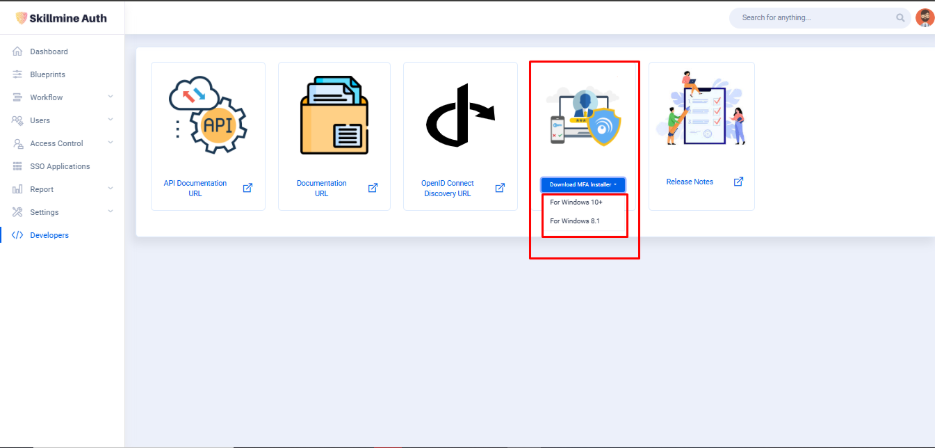
* Navigate to the Developers section in the Skillmine Auth Admin Portal.
* Click on Download MFA Installer and choose the version based on the operating system:
* For Windows 10+
* For Windows 8.1
* The downloaded .msi file is the Skillmine Auth MFA agent that will be installed on the user’s machine.
***Step 2: Obtain the Windows MFA Setup Key***
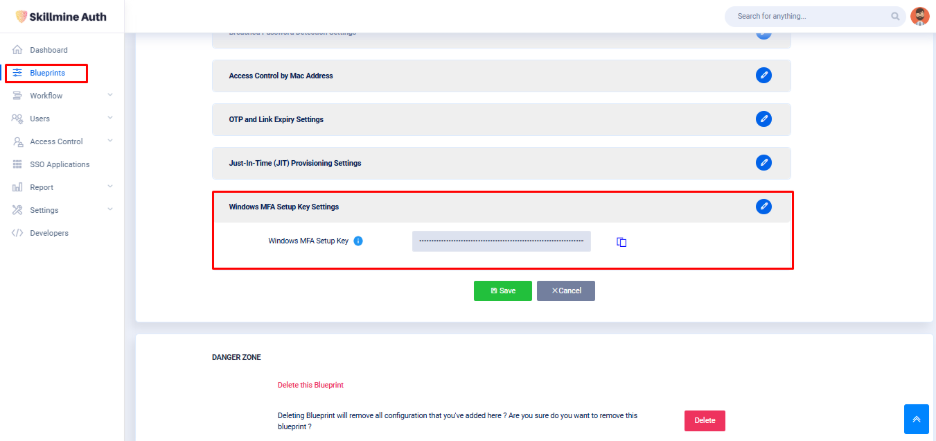
* Go to Blueprints → Windows MFA Setup Key Settings.
* Locate the field Windows MFA Setup Key under the configuration section.
* Copy this key using the copy icon it will be required during the MFA agent installation on the user’s machine.
***2. User Configuration (System Setup)***
***Step 3: Install the Windows MFA Agent***
* Run the downloaded .msi installer on the user’s Windows device.
* During installation, the setup will prompt for the Windows MFA Setup Key obtained from the admin portal.
* Paste the key to link the local machine with the organization’s Skillmine Auth instance.
* Once installed, the agent automatically maps the local user profile with the Skillmine Auth user account.
***Step 4: Windows Login with MFA Verification***
* After successful installation and configuration, the next time the user logs into Windows:
* The user enters their standard Windows credentials (username and password).
* Immediately after credential verification, the Skillmine Auth MFA prompt appears.
* The user must complete MFA verification using one of the configured authentication methods:
* Email OTP
* TOTP (Authenticator App)
* HOTP
* Push Notification
* Pattern-based verification, etc.
* Once the MFA step is verified, access to the Windows system is granted.
***Components Explained***
1. **MFA Installer (.msi):** The Windows agent that enables Skillmine Auth MFA integration on user devices.
2. **Windows MFA Setup Key:** A unique setup key used to link the user’s system with Skillmine Auth during installation.
3. **Blueprint Integration:** The setup key is tied to a blueprint that defines authentication flows and MFA methods.
4. **MFA Prompt:** The verification screen that appears after entering system credentials during login.
5. **Supported Methods:** Email OTP, TOTP, HOTP, Push Notification, Pattern, etc.
6. **Developer Portal:** Provides download access for MFA installers and related documentation links.
***Scenario:*** \
An organization wants to ensure that only verified users can access corporate laptops, even if someone else knows their system password.
***Implementation Steps:***
1. The admin downloads and shares the MFA installer from the Developers page.
2. The admin copies the Windows MFA Setup Key from the selected blueprint.
3. The user installs the agent and enters the setup key.
4. On every subsequent Windows login, users must authenticate using a second factor ensuring secure, verified access.
#### *Conclusion*
The Windows MFA feature in Skillmine Auth provides an extra security layer for Windows logins by integrating multi-factor authentication directly into the operating system’s login process. \
With centralized configuration from the admin portal and easy deployment through the MSI agent, it ensures secure, password-plus verification for all system users protecting endpoints from credential theft, unauthorized logins, and insider threats.