> For the complete documentation index, see [llms.txt](https://authdocs.skill-mine.com/licentio-documentation/llms.txt). Markdown versions of documentation pages are available by appending `.md` to page URLs; this page is available as [Markdown](https://authdocs.skill-mine.com/licentio-documentation/report/time-restriction-report-1.md).
# Time Restriction Report
The Time Restriction Report shows user login attempts blocked and allowed by time-based rules. It helps admins filter, analyze, and troubleshoot access issues to enforce security policies.
**1. Introduction**
* **Purpose:** The Time Restriction Report is a tool for administrators to monitor and analyze Time Restriction Failures across users and systems (flows). It helps identify when users are being blocked due to configured time restrictions, allowing for investigation and potential adjustments to those restrictions.
* **Key Features:**
* **Searchable Reports:** Find specific time restriction failures using various filters.
* **Clear Data Display:** View failures in an easy-to-understand table format.
* **Easy Access to Configuration:** Quickly navigate to the configuration settings related to each failure.
**2. Using the Search Filters**
The report includes the following search filters to help you find the information you need:
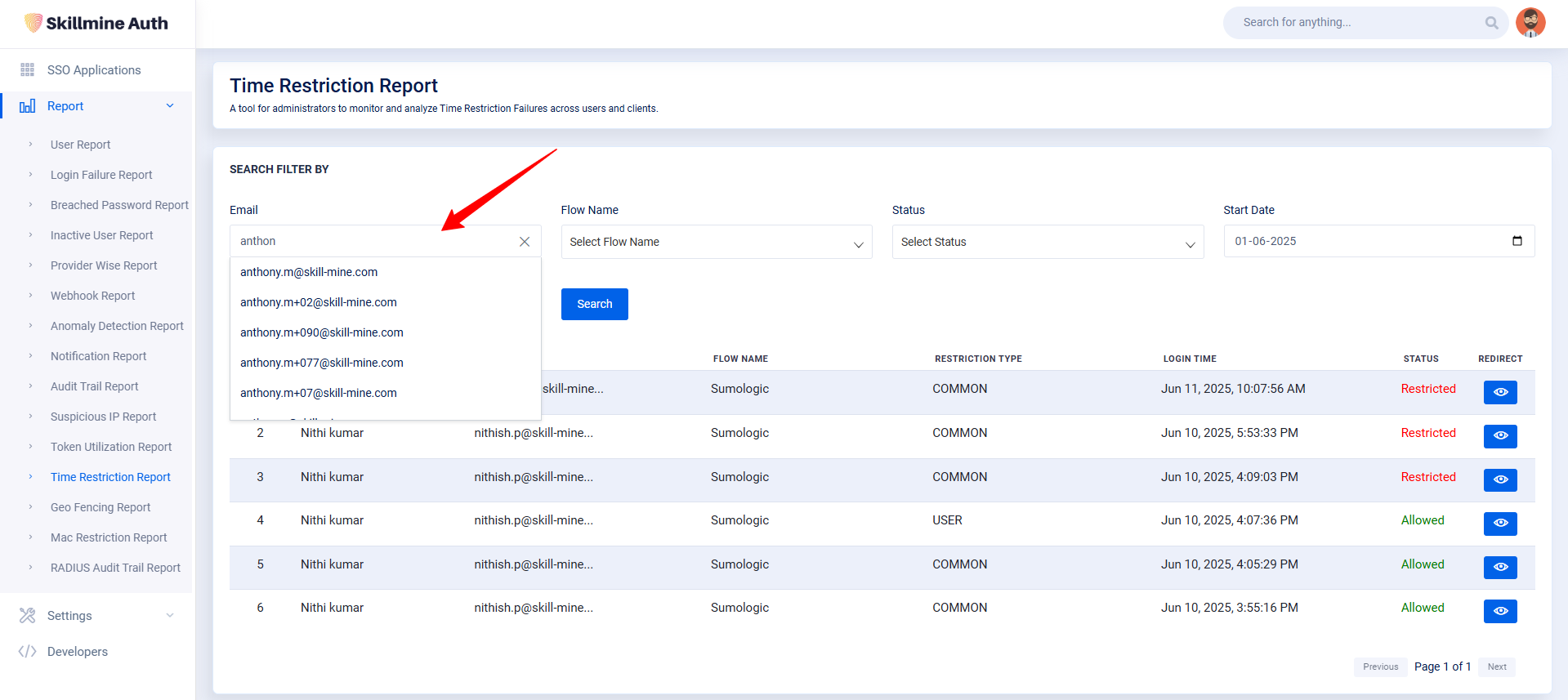
* **Email:** Enter the email address of a specific user you want to investigate. The system will suggest matching email addresses as you type. You can select an email from the dropdown to refine your search.
* **Flow Name:** Select one flow name from the dropdown list. This allows you to focus on failures related to specific applications. A "flow" represents a specific process or system the user is trying to access.
* **Status:** Select the status of the access attempt: "Allowed" or "Restricted". This filter helps you isolate failures (restricted access) or confirm successful attempts (allowed access).
* **Start Date & End Date:** Specify a date range to view failures that occurred within a specific time period.
* **Search Button:** After entering your desired filters, click the "Search" button to generate the report.
**3. Understanding the Report Table**
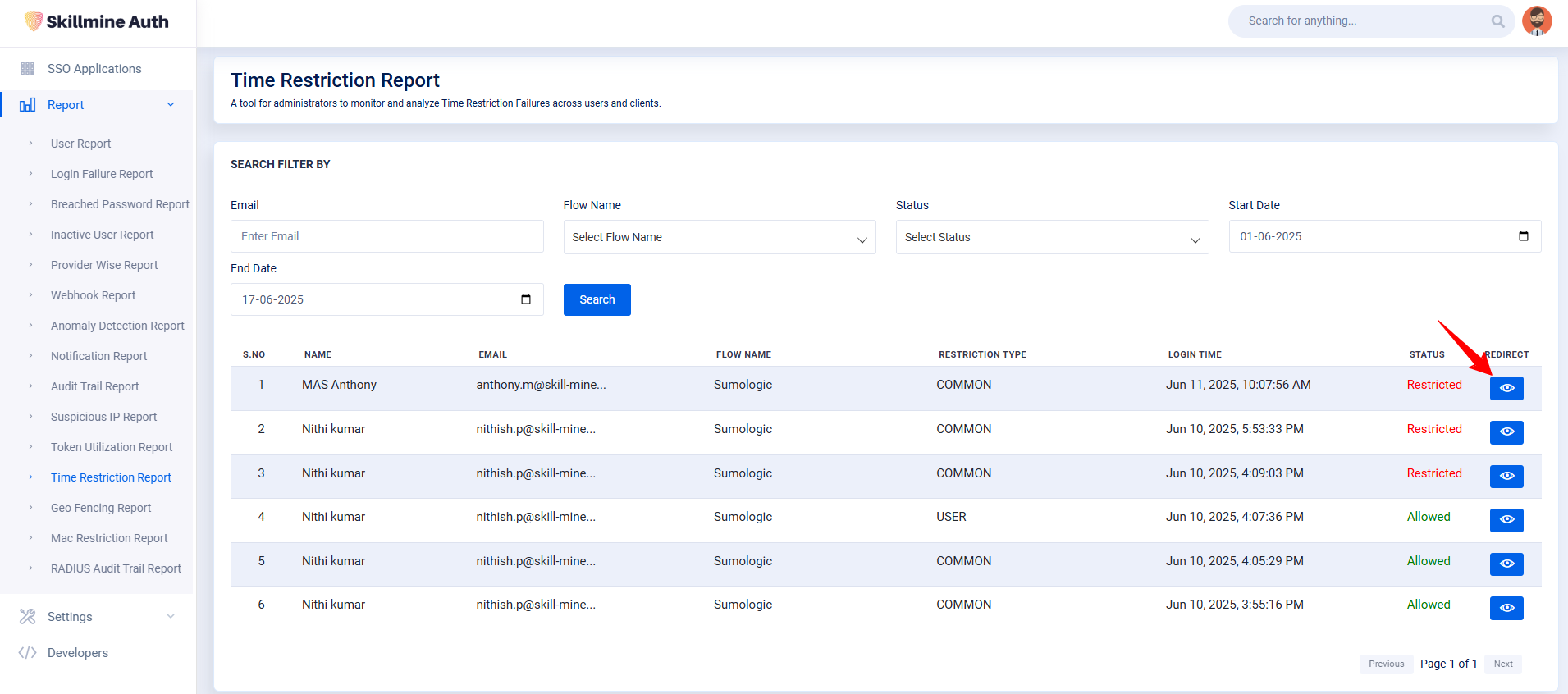
The generated report displays a table with the following columns:
* **S.No:** The sequential number of the entry in the table.
* **Name:** The name of the user who experienced the time restriction failure.
* **Email:** The email address of the user.
* **Flow Name:** The name of the system or application (flow) the user was trying to access.
* **Restriction Type:** The type of time restriction that was triggered (e.g., Common).
* **Login Time:** The date and time when the user attempted to log in.
* **Status:** Indicates whether the user was "Allowed" or "Restricted" from accessing the system. The table may highlight rows with a status of "Restricted" for easier identification.
* **Redirect (View Config):** A button that allows you to navigate directly to the configuration settings related to the time restriction for that specific user and flow.
**4. Viewing Configuration Details**
To view the configuration details for a specific time restriction failure:
1. Locate the row in the table corresponding to the failure you want to investigate.
2. Click the "View Config" button in the "Redirect" column.
3. You will be redirected to the time-based restriction settings page, where you can review and modify the configuration as needed.