| Status Type | Allows you to filter anomaly records based on their status, such as Fraud, Possibly Fraud, or Anomaly. |
| Start Date | Select the beginning date for the report. Only records detected on or after this date will be shown. |
| End Date | Select the ending date for the report. Only records detected on or before this date will be included. |
| Search Button | Applies the selected filters and displays the matching anomaly records. |
| S. No | Displays the serial number for each anomaly entry. |
| Name | Shows the user’s name associated with the detected anomaly. |
| IP Address | Indicates the IP address from which the suspicious or unusual activity originated. |
| Browser | Displays the browser used during the anomalous login or activity. |
| Status | Shows the classification of the detected activity (e.g., Fraud, Possibly Fraud, Anomaly). |
| Operating System | Specifies the operating system used during the activity (e.g., Windows, macOS, Android). |
| Address | Displays the approximate geographic location derived from the IP address. |

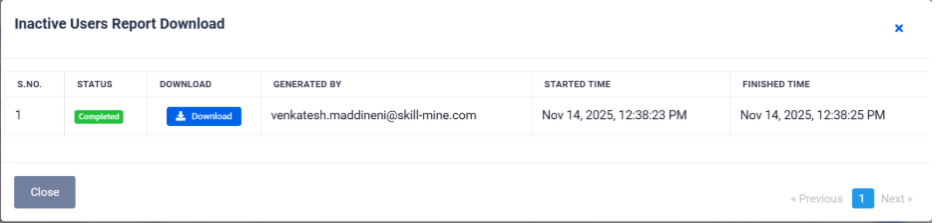
| S. No: | Report sequence number |
| Status: | Indicates report generation status (e.g., Completed, In Progress, Failed) |
| Download: | Provides a download link (once the report is ready) |
| Generated By: | Displays the email of the admin who triggered report generation |
| Started Time: | Time when the report generation was initiated |
| Finished Time: | Time when the report was successfully completed |